Free construction template
Construction Schedule Template
A construction schedule is the plan of every activity on a project, in order, with its duration and the activities it depends on, from mobilization to closeout. On this page: a free Excel schedule with a 3-week look-ahead tab, how its dates are calculated, a worked example with its critical path, and our view on weekly updates.
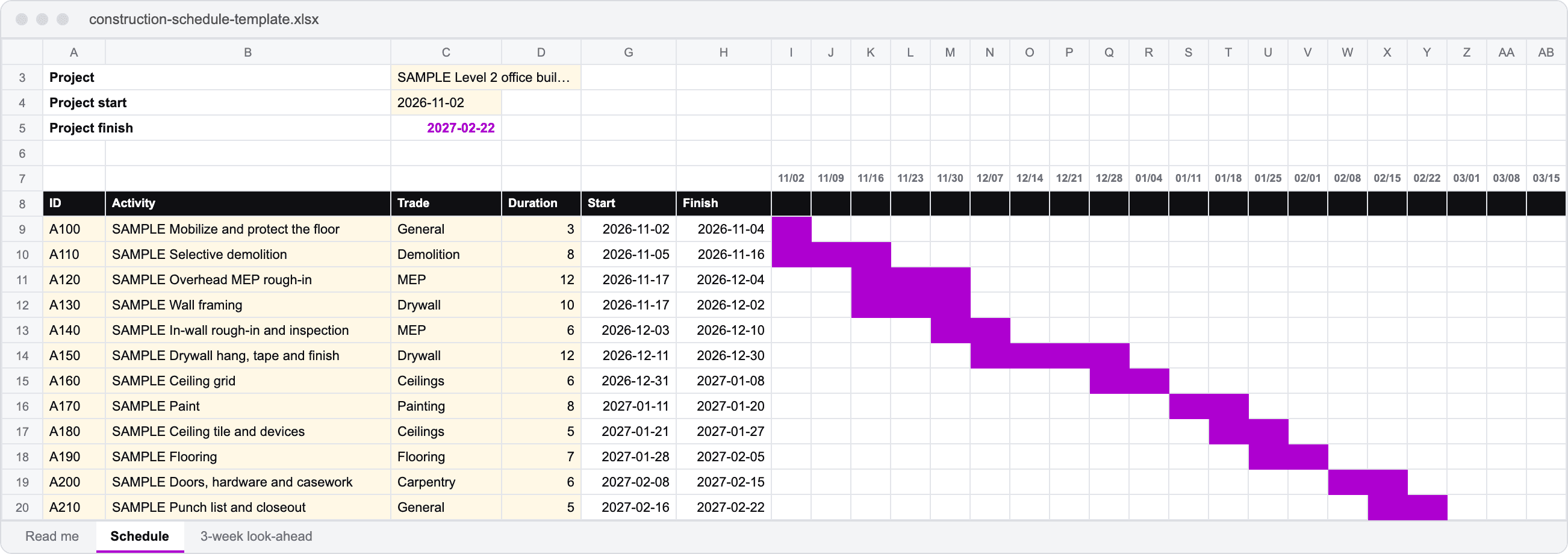
What is in the workbook
- Schedule: activity ID, name, trade, duration in working days and up to two predecessors
- Start and finish dates calculated with Excel's WORKDAY function, skipping weekends and your holiday list
- A 20-week bar chart that redraws when a duration changes, and the project finish date
- A 3-week look-ahead tab that marks every activity running in the window you set
Planning the next job? Start with a free takeoff on its drawings.
Send one set of drawings from a job you are bidding and we take it off free, every quantity tied to the sheet it came from.
How the dates are calculated
Each activity starts the working day after its later predecessor finishes, and finishes its duration minus one working day after it starts. Weekends and the dates on the holiday list are skipped. Change one duration and every activity after it moves, which is the point of linking the schedule instead of typing dates.
Links are finish to start with no lag, and predecessors sit above the activity that depends on them. That covers most building schedules. Overlaps, lags and resource leveling need a scheduling program.
A worked construction schedule example
In this illustrative schedule, a Level 2 office build-out starts on Monday, November 2, 2026, with Thanksgiving and the day after it, December 24 and 25, and January 1 off. Twelve activities run to closeout on February 22, 2027.
| Activity | Days | Start | Finish |
|---|---|---|---|
| Mobilize and protect the floor | 3 | 2026-11-02 | 2026-11-04 |
| Selective demolition | 8 | 2026-11-05 | 2026-11-16 |
| Overhead MEP rough-in | 12 | 2026-11-17 | 2026-12-04 |
| Wall framing | 10 | 2026-11-17 | 2026-12-02 |
| In-wall rough-in and inspection | 6 | 2026-12-03 | 2026-12-10 |
| Drywall hang, tape and finish | 12 | 2026-12-11 | 2026-12-30 |
| Ceiling grid | 6 | 2026-12-31 | 2027-01-08 |
| Paint | 8 | 2027-01-11 | 2027-01-20 |
| Ceiling tile and devices | 5 | 2027-01-21 | 2027-01-27 |
| Flooring | 7 | 2027-01-28 | 2027-02-05 |
| Doors, hardware and casework | 6 | 2027-02-08 | 2027-02-15 |
| Punch list and closeout | 5 | 2027-02-16 | 2027-02-22 |
Ceiling grid waits for two predecessors, drywall finishing and the overhead rough-in, and starts after the later one.
Find the critical path
The critical path is the longest chain of linked activities, and it sets the finish date. Here it runs through framing, in-wall rough-in and drywall finishing: 10 + 6 + 12 = 28 working days between demolition and the ceiling grid. The overhead rough-in takes 12 days in the same stretch, so it has 28 - 12 = 16 working days of float. It can slip that far without moving the finish.
The whole critical path is 3 + 8 + 10 + 6 + 12 + 6 + 8 + 5 + 7 + 6 + 5 = 76 working days. Any day lost on those activities is a day lost at the end. The critical path method glossary entry shows the forward and backward pass behind that number.
Use the 3-week look-ahead
Set the week starting date and the tab marks every activity that runs in the next three weeks. For the week of November 30, 2026, that is the overhead rough-in, framing, in-wall rough-in and drywall finishing. Use the last column to write what each one needs to start on time: crews, deliveries and inspections.
Run it at the weekly foreman meeting and roll it forward one week each time. The look-ahead schedule glossary entry explains how it ties back to the master schedule.
Our view: update it every week
In our view, a schedule nobody updates stops being a schedule within a month. Each week, change the durations to match what actually happened and let the links move everything after them, so the look-ahead always comes from the real job.
Construction schedule template FAQs
What is a construction schedule?+
A construction schedule is the plan of every activity on a project in the order it happens, with a duration for each and the activities each one waits on, so the start and finish of the whole job can be worked out.
What is a 3-week look-ahead schedule?+
It is the next three weeks of the master schedule, broken out so each foreman can confirm crews, deliveries and inspections before the work is due. It rolls forward one week at every meeting.
What is the critical path in construction?+
It is the run of linked activities with no slack. Add up their durations and you have the length of the job, so a day lost on any of them pushes the finish back a day.
How do I calculate working days in Excel?+
Use the WORKDAY function. WORKDAY(start, days, holidays) returns the date that many working days later, skipping weekends and the dates in the holiday range. This template uses it for every start and finish.
Can Excel replace scheduling software?+
No, not for large or complex jobs. Excel handles finish-to-start links and working days well. Lags, overlapping activities, resource leveling and float reports need a scheduling program.
Is the construction schedule template free?+
Yes, with no limit on projects. The download unlocks once you enter a work email.
This template is a planning tool, not a contract schedule. Durations in the sample are placeholders, and your contract may require a specific scheduling format.